Using Asta Siteprogress to collect field evidence
You can use Asta Siteprogress to collect field evidence - photographic evidence, stamped automatically with information on when and where the photograph was taken, and by whom - to prove that individual tasks have actually taken place on a plot. Asta Siteprogress's field evidence feature can be useful to ensure that you comply with building regulations - for example, Part L of the UK Building Regulations, which covers the conservation of fuel and power and which insists on evidence of compliance.
To use Asta Siteprogress to collect field evidence, you must first set up 'field evidence template' - a template that defines the field evidence that must be collected. A field evidence template comprises two types of entity:
- Tasks - the tasks, or activities, for which field evidence must be collected. For each task for which field evidence must be collected, you must create a corresponding task in your field evidence template.
The names of the tasks much match exactly the names of corresponding tasks in your projects in order to collect field evidence. For example, if you have tasks called 'Dig Foundations' in your projects for which you want to collect field evidence, the corresponding task in your field evidence template must also be called 'Dig Foundations'. Calling the task 'Digging Foundations' or 'Foundations' will not work. However, the name matching is case-insensitive, so a task called 'Dig Foundations' in your projects would match a corresponding task in your field evidence template called 'Dig foundations'; or one called 'DIG FOUNDATIONS'; or one called 'dig foundations'. Make your task names detailed and unique to ensure that task matching occurs only when it should. - Evidence items - the individual work items for which field evidence must be collected for each task. For each task in the field evidence template you must create an evidence item in your field evidence template for each individual work item for which field evidence must be collected.
For example, if you have a task called 'Fit Loft Insulation' in your projects - with one instance of this task for each loft that must be insulated on a plot - you may have two different evidence items that need to be collected to prove that this task has been carried out satisfactorily on each plot. These may be 'Loft Insulation Thickness' and 'Complete Coverage of Loft Area'. For each evidence item in the field evidence template, users will need to provide a photograph as evidence using Asta Siteprogress.
You then configure your projects and tasks to enable the collection of field evidence. Essentially, this involves:
- Structuring your projects so that all of the tasks for each individual plot are located within a summary task or expanded task that bears the name of the plot.
- Ensuring that the names of the tasks for which you want to collect field evidence match exactly the names of the corresponding tasks in your field evidence template.
- Associating the appropriate Mobile user with the tasks for which you want to collect field evidence.
- Ensuring that nothing has been entered into the 'Plot_No' user-defined field against the bars on which the tasks are located.
 Overview of the progress reporting process when field evidence is collected
The following illustration shows the way in which Asta Siteprogress is used to update project information with remotely-recorded progress when field evidence is collected. Steps that are carried out by Administrators are shown in dark grey; steps carried out by Mobile users are shown in orange. More information on each stage of the process is given beneath the illustration:
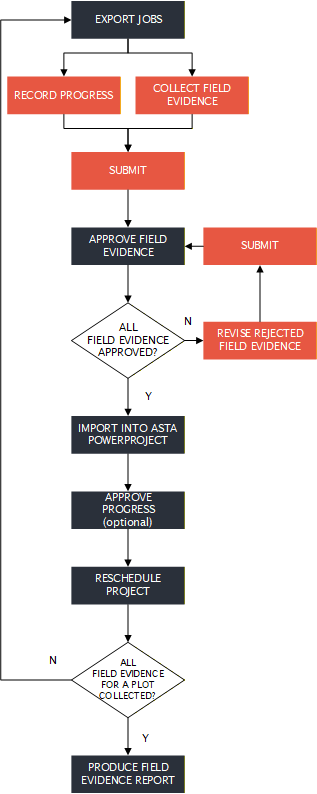
Export jobs
Asta Siteprogress Administrators use the Site Progress tab of the Backstage view to export project information from your Asta Powerproject projects. Typically, the export is done once a week, usually at the start of each week - Monday afternoon would be a good time to do this. Project information - information relating to those tasks that should be in progress or complete during or just after the current working period - is exported to the Cloud, from where it can be updated by each Mobile user using a mobile device.
Information on the tasks for which field evidence must be collected, and on the individual evidence items that must be collected, is exported when you export information from your Asta Powerproject project(s) so that it can be updated using Asta Siteprogress.
Record progress
When a Mobile user accesses Asta Siteprogress at the start of a working period - usually a week or fortnight - information relating to the tasks on which they are due to work during the working period are downloaded. Mobile users select the project that they want to update and browse through the project hierarchy to locate the chart or summary group that represents the site that they want to update. They can then use Asta Siteprogress to update individual tasks and to tick off the build stages that have been completed for each plot. They can also associate photographs and notes with particular tasks or build stages.
Collect field evidence
If the names of any of the tasks that have been exported match the names of tasks in your field evidence template, Mobile users can collect field evidence to prove that those tasks have been completed. Collecting field evidence involves taking a photograph for each evidence item that is associated with a task; each task can have more than one field evidence item associated with it. Asta Siteprogress automatically saves data relating to where and when the photographs were taken, and who they were taken by.
Submit
Once a Mobile user has finished recording progress - usually at the end of the week - they submit the information that they have recorded using Asta Siteprogress.
If the Mobile user has collected any field evidence, the field evidence is submitted at the same as their progress information. Any field evidence photographs that they have taken are uploaded to the Cloud at this point.
Approve field evidence
Once a Mobile user has submitted one or more field evidence items, Administrator users receive an email to inform them that field evidence has been submitted. They then sign into Asta Siteprogress to review the field evidence that has been submitted. Administrators can approve or reject each individual item of field evidence. If they reject an item, they must record a reason for the rejection.
Revise rejected field evidence
If any field evidence items are rejected - for example, because a photograph is not sufficiently clear - Mobile users must revise the rejected items, usually by taking another photograph. They can then resubmit the rejected items, which go through the approval process once more.
Import into Asta Powerproject
Once all the field evidence relating to a job has been approved, an Administrator user can use the Site Progress tab of the Backstage view to import progress back into your Asta Powerproject projects. As with the export, the import is typically done once a week. If you export every Monday afternoon, Monday morning would be a good time to carry out the import.
Field evidence is not imported into Asta Powerproject; the field evidence photographs remain in the Cloud.
Approve progress (optional)
Approving Asta Siteprogress progress information is an optional step - approval takes place only if the Imported progress requires approval check box on the Import tab of the Site Progress Settings dialog is selected. If Asta Siteprogress is configured to require approval, Administrator users accept or reject the progress that has been recorded by Mobile users. Any progress that is rejected is not imported into the appropriate Asta Powerproject project.
Reschedule project
Once updated project information has been imported into the Asta Powerproject projects, the projects can be rescheduled in order to move uncompleted tasks beyond the report date of the last-used progress period. Once the projects have been rescheduled, the process can be started again, beginning with the export.
Produce field evidence report
Once an Administrator user has approved all of the field evidence that is required for a plot, they can produce a field evidence report on the plot. Field evidence reports can be produced for a plot at any time before all of the plot's field evidence has been collected, but it makes sense to wait until all of the plot's field evidence has been collected before producing a report.
Field evidence reports, which are produced in PDF format, include a front page that displays general information about the project, your organisation and the selected plot, which you specify when you produce the report. This is followed by information about the tasks that have been carried out on the plot, and the individual field evidence items that have been collected and approved for each task. The tasks and field evidence items appear in the report in the order in which they appear in the field evidence template.
Setting up a field evidence template
Configuring projects for use with Asta Siteprogress
Exporting and importing information using Asta Siteprogress