Displaying and positioning the IFC Model pane
When you open a project that has an associated 3D model or IFC group model, unless you selected the Disable IFC model loading check box, the IFC Model pane appears in the Asta Powerproject window. This pane shows a 3D depiction of the 3D model that is currently open.
If you have linked together a number of related 3D models into an IFC group model and you have opened the IFC group model, the IFC Model pane displays all of the linked 3D models at the same time, overlaid over one another.
To toggle the IFC Model pane on and off, on the 4D tab, in the Panes group, click Model.
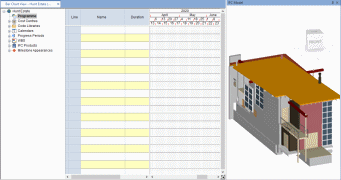
The IFC Model pane appears initially to the right of the bar chart, as illustrated below:
If you have more than one project file open in Asta Powerproject 4D and the 3D model or IFC group model that is currently open is referred to by both project files, the Select IFC model control in the Model group on the 4D tab of the Ribbon updates to display the name of the 3D model or IFC group model if you switch from one project file to another. If you have more than one project file open and the 3D model or IFC group model that is currently open is not referred to by one of the project files, the Select IFC model control in the Model group on the 4D tab of the Ribbon updates to display "Undefined" if you switch from a project file that refers to the 3D model or IFC group model to a project file that does not refer to the 3D model or IFC group model.
Displaying the IFC Model pane in a different position
You can change the position of the IFC Model pane by clicking and dragging its title bar. You can click and drag the pane to a different position within the Asta Powerproject window or click and drag it so that it is displayed as a pane that floats above the Asta Powerproject window.
 Examples of where the IFC Model pane can be positioned
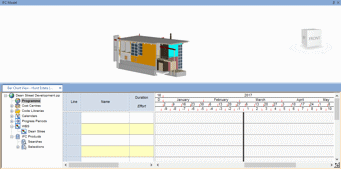
Above the project view and bar chart:
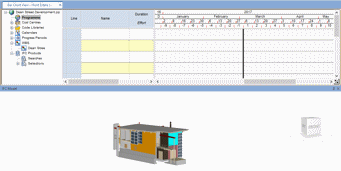
Below the project view and bar chart:
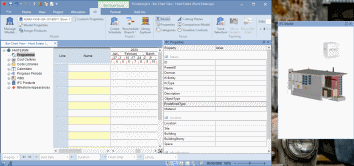
As a pane that floats above the Asta Powerproject window and that can be positioned away from the Asta Powerproject window (particularly useful if you use two monitors):
To display the IFC Model pane in a different position within the Asta Powerproject window:
- Click the mouse pointer in the title bar of the IFC Model pane:
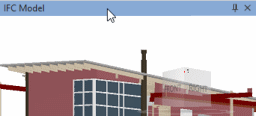
- Keeping the left mouse button held down, drag the title bar to a different location within the Asta Powerproject window. When you move the pane to a section of the window to which it can be anchored - for example, towards the top or right of the window - an outlined rectangle appears to indicate the position in which the pane will be anchored:
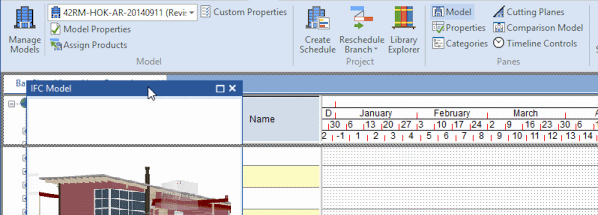
- Release the mouse button to move the pane to this position.
To display the IFC Model pane so that it floats above the Asta Powerproject window and can be positioned away from the Asta Powerproject window:
- Click the mouse pointer in the title bar of the IFC Model pane:
- Keeping the left mouse button held down, drag the title bar to a different location within the Asta Powerproject window.
- Release the mouse button to move the pane to this position.
If Asta Powerproject is not maximised, or if you are using two monitors, you can drag the floating pane and position it away from the Asta Powerproject window. If you do so, you can drag it back and reincorporate it into the Asta Powerproject window at any time.
Synchronising the views in the IFC Model and IFC Comparison Model panes
Although you can display different views of a 3D model in the IFC Model and IFC Comparison Model panes, you may want to synchronise the panes so that they display exactly the same view.
- To set both panes to display the view that is currently displayed in the IFC Model pane, right-click the IFC Comparison Model pane and select Move to IFC Model Viewpoint from the menu that appears.
- To set both panes to display the view that is currently displayed in the IFC Comparison Model pane, right-click the IFC Model pane and select Move to IFC Comparison Viewpoint from the menu that appears.
Synchronising the panes in this way does not tie the viewpoints of the panes together from that point onwards; after you have synchronised the panes, you are again free to navigate around each pane independently.
Displaying and positioning the IFC Comparison Model pane
Switching between orthogonal and perspective modes
Navigating around 3D models in orthogonal mode
Navigating around 3D models in perspective mode
Rotating 3D models using the view cube
"Walking through" the interior of a 3D model
Specifying which 3D objects to display according to their IFC category
Hiding and displaying 3D objects in a 3D model
Selecting 3D objects in a 3D model
Maintaining the properties of selected 3D objects in a 3D model