Structuring a project using summary tasks
Project management is not only about defining tasks and setting up their dependencies; it is also about organising the different parts of a project into a coordinated whole.
In
Before you continue:
- Insert three bars between the Roofing Timbers and Finish on Site tasks.
- Create three tasks on these bars called "Roofing", "Plumbing" and "Electrics".
- Move the finish of the link that currently joins the Roofing Timbers and Finish on Site tasks so that the link joins the Roofing Timbers and Roofing tasks.
- Link the Roofing, Plumbing, Electrics and Finish on Site tasks with Finish-to-Start links.
- Reschedule the project.
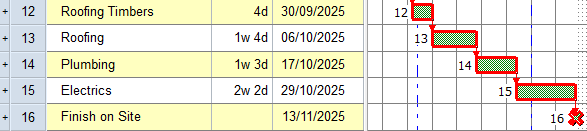
The last few tasks in the project should now look something like this:
Summarising tasks into summary groups
You will now group together the various tasks in the project using a number of summary tasks:
- Click bar 1 in the Line column of the spreadsheet.
- Hold down SHIFT and click bar 4 in the Line column of the spreadsheet. All bars from Design to Meetings are selected.
- On the Home tab, in the Hierarchy group, click
 . A new bar is inserted above the selected tasks, containing a summary task. Note that the names of the summarised tasks are indented slightly in the spreadsheet to show that they are part of the summary task's summary group: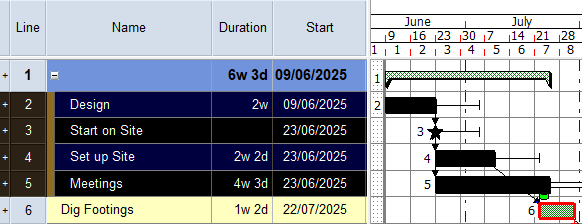
Note also that in the bars relating to summary tasks, the spreadsheet displays information relating to all of the tasks in the summary group. For example, the Start column displays the start date of the first task in the summary group and the Finish column displays the finish date of the last task. - The summary task does not have a name. Click in the Name column in the spreadsheet, type "Pre-Construction" and press ENTER.
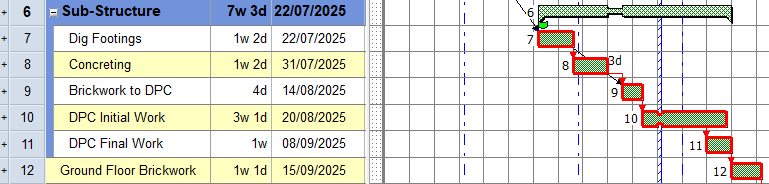
- Summarise the bars from Dig Footings to DPC Final Work in a summary task called "Sub-Structure":
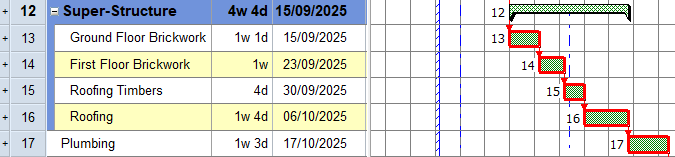
- Summarise the bars from Ground Floor Brickwork to Roofing in a summary task called "Super-Structure":
- Summarise the Plumbing and Electric bars in a summary task called "Finishes":

The summary groups you have created are visible in the project view. To see them, click the + to the left of the Programme chart in the project view:
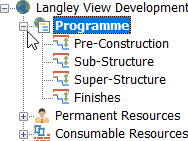
Expanding and contracting summary tasks
You can expand and contract summary tasks to display and hide the bars within them.
To switch a summary task between its expanded and contracted states, double-click the summary task in the bar chart. When a summary task is expanded, you can see the bars within its summary group; when a summary task is contracted, its summary group is not displayed and + symbols appear at both ends of the summary task to indicate that the task contains further bars.
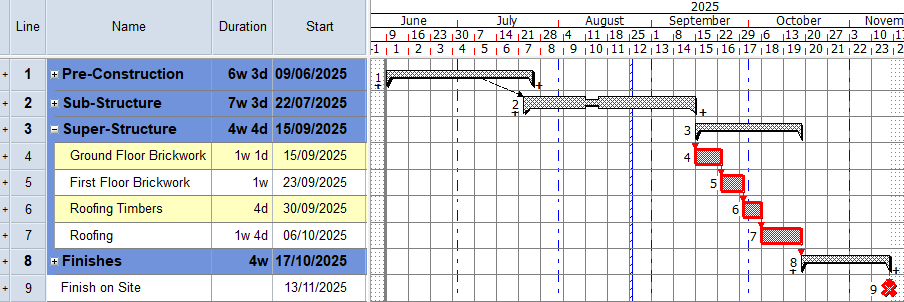
Try this now: double-click the summary tasks in the project to expand and contract them. To finish, contract all of the summary tasks except the Super-Structure summary task.
Your project should now look something like this (note that the dates and durations of tasks may be different):
| Previous | Next |
| Adding constraints to a project | Removing tasks from and adding tasks to summary groups |