Removing tasks from and adding tasks to summary groups
You can remove tasks from summary groups by "outdenting" them; you can add tasks to existing summary groups by "indenting" them.
To remove a task from a summary group:
- Click the Roofing bar in the Line column of the spreadsheet to select the bar.
- On the Home tab, in the Hierarchy group, click
 . The Roofing bar is "outdented" and removed from the Super-Structure summary group: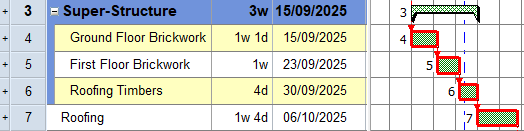
You can see that the bar has been removed from the summary group as its name is no longer indented in the spreadsheet and the blue colouring has been removed from the left of the Name column. If you double-click the Super-Structure summary task to contract it, note that the Roofing bar remains visible: it is no longer part of the summary group.
Expand the Super-Structure summary task so that you can see the contents of its summary group before continuing.
To add a task to a summary group:
- Click the Roofing bar in the Line column of the spreadsheet to select the bar.
- On the Home tab, in the Hierarchy group, click
 . The Roofing bar is "indented" and added back into the Super-Structure summary group - when you indent a bar, it is added to the summary group directly above it: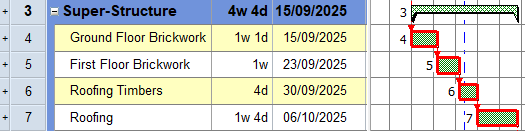
You can see that the bar has been added to the summary group as its name is indented in the spreadsheet and the blue colouring has been added to the left of the Name column. If you double-click the Super-Structure summary task to contract it, note that the Roofing bar disappears: it is once again part of the summary group.
Expand the Super-Structure summary task so that you can see the contents of its summary group before continuing.
Removing summary tasks
To remove a summary task from the project, you select the bars in the summary group and "outdent" them. This deletes the summary task without deleting the bars that are contained within the summary group. Try this now:
- SHIFT-select all of the bars in the Super-Structure summary group - from Ground Floor Brickwork to Roofing.
- On the Home tab, in the Hierarchy group, click . The selected bars are "outdented" and removed from the Super-Structure summary group and the Super-Structure summary task is deleted:
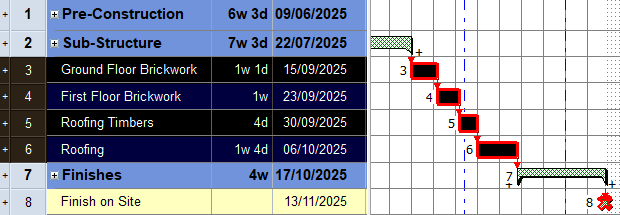
Before you continue, click  in the Quick Access toolbar to undo your last action. This reinstates the Super-Structure summary task and "indents" the selected bars back into its summary group.
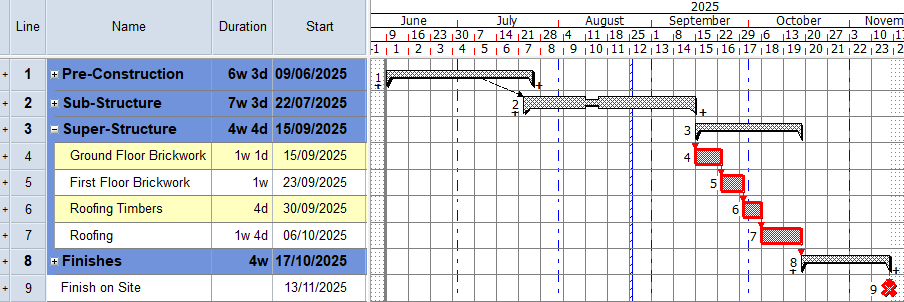
Your project should now look something like this (note that the dates and durations of tasks may be different):
| Previous | Next |
| Structuring a project using summary tasks | Formatting summary bars |