Adding constraints to a project
Sometimes you might need to show that a task cannot start before a certain date
Types of constraint
| Constraint | Appearance | Description |
|---|---|---|
| Start On or After |

|
Constrains a task to start on or after a specific date. The task can be moved to a later date but cannot be moved to an earlier date when you reschedule the project. Successor tasks may be moved as a result of the task moving to a later date. |
| Start On |

|
Constrains a task to start on a specific date. The task is not moved when you reschedule the project, even if the internal logic of the plan dictates that the task could be moved earlier or later. Predecessor or successor tasks may be moved to allow the task to remain on its start date. |
| Finish On or Before |

|
Constrains a task to finish by a specific date. The task can be moved to an earlier date but cannot be moved to a later date when you reschedule the project. Predecessor tasks may be moved to allow the task to remain on its finish date. |
| Deadline |

|
If you apply a Deadline constraint to a task, the task is able to slip beyond the flag date. Deadline flags, which point in the opposite direction to other finish flags, appear as blue unless the task slips beyond them, in which case they appear shaded with diagonal stripes. |
| Finish On |

|
Constrains a task to finish on a specific date. The task is not moved when you reschedule the project, even if the internal logic of the plan dictates that the task could be moved earlier or later. Predecessor or successor tasks may be moved to allow the task to remain on its finish date. |
| Work Between |

|
Constrains a task to start and finish on specific dates. The task becomes critical as it cannot be moved at all, so it cannot be delayed. Following a reschedule, the task is not moved at all. |
| Holding Pin |

|
If you apply a Holding Pin to a task, the task can be moved to a later date but cannot be moved to an earlier date when you reschedule the project, and if the task is moved, the pin moves with the task. The main purpose of the Holding Pin constraint is to hold unlinked tasks in place in a schedule. |
Applying a constraint flag to a task
In this project, you will move the Dig Footings task to a different date then apply a Start On or After constraint to it, to show that it cannot start before the date to which you have moved it:
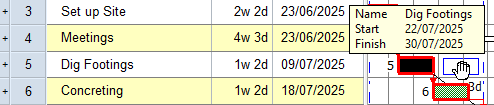
- Click and drag the Dig Footings task to the right on its bar so that its start and finish dates are approximately one week later than they were:
- Right-click the Dig Footings task and select Constraint Flag - Start On or After from the menu that appears:
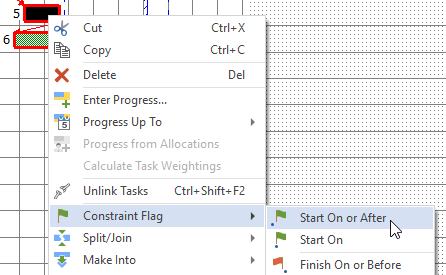
A Start On or After constraint flag appears at the start of the Dig Footings task:
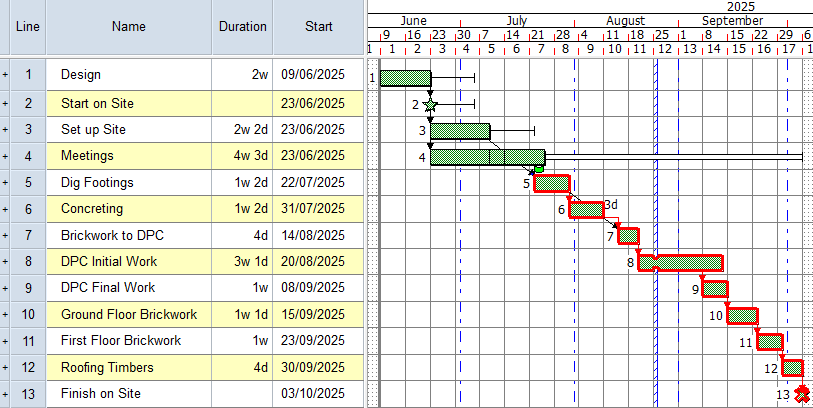
Note that as you have moved the Dig Footings task one week later, the links that finish and start at the task are no longer vertical. If the Dig Footings task was not constrained to start or after its current date,
Your project should now look something like this (note that the dates and durations of tasks may be different):
| Previous | Next |
| Structuring a project using summary tasks |