Rescheduling a project
You project now contains many linked tasks, but the tasks are not positioned correctly according to the logic of the links. To position the tasks in a project correctly, you need to
- The start of the earliest task is positioned at the start of the project.
- The optimum start and finish dates of all tasks are calculated, according to the links between the tasks.
- Float is calculated. Float is the amount by which a task can be delayed without affecting the finish date of the project - or the finish date of other tasks.
- Critical tasks are identified. Critical tasks are those without any float, that would affect the finish date of the project if they were delayed.
- The finish date of the project is calculated.
To
- On the Home tab, in the Reschedule group, click
 . The Reschedule Progress Period Warning dialog appears, informing you that the project will be rescheduled to the report date of the project's single progress period (you will learn more about progress periods later).
 - Click OK. The project is rescheduled.
Your project should now look something like this (note that the dates and durations of tasks may be different):
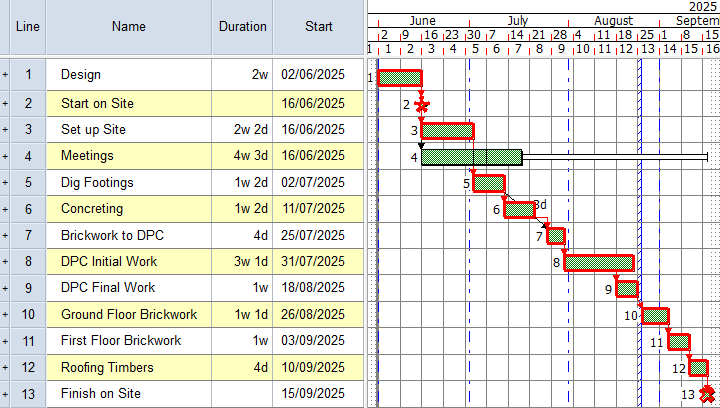
Note the following:
- The start of the Design task - the earliest in the project - is placed at the start of the project.
- As far as possible, all links are now vertical, so that successor tasks start immediately after predecessor tasks.
- Critical tasks are outlined in red:
 .
. - The Meetings tasks are not critical - they can be delayed without affecting the finish date of the project or the finish date of other tasks - and float is displayed after these tasks, indicating how far they can be delayed before they become critical:

The float illustrated above is "free float" - the amount of time a task can be delayed without affecting the finish date of the project or the finish date of other tasks. You may also see "total float" after a reschedule, which looks like this:
"Total float" is the amount of time a task can be delayed without affecting the finish date of the project. - The Finish on Site milestone - the latest in the project - is placed at the finish of the project. Its date is the project finish date.
| Previous | Next |
| Moving links from one task to another |