Merging data into a baseline
Once you have created a baseline, you may want to merge data into it at a later point. This may be data that was unavailable or omitted for some other reason when the baseline was created.
To merge data into a baseline:
- On the Project tab, in the Properties group, click Baseline Manager. The Baseline/What If Manager dialog appears:
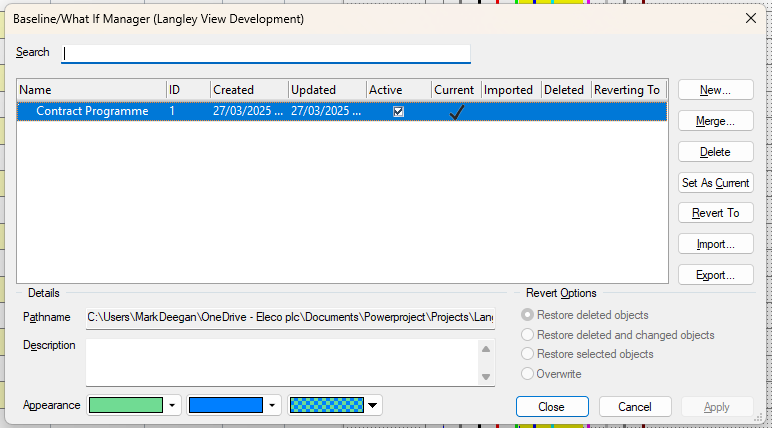
- Select the baseline into which you want to merge information. In this case, you have created only one baseline, so click the Contract Programme baseline.
- Click Merge. The Details screen of the Baseline Wizard appears:
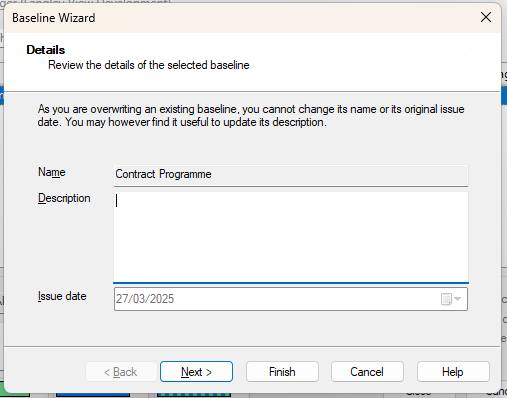
- Enter information into the Description field to describe the reason for the merge. For example, you could enter "New Information added".
- Click Next. The Scope screen of the Baseline Wizard appears:
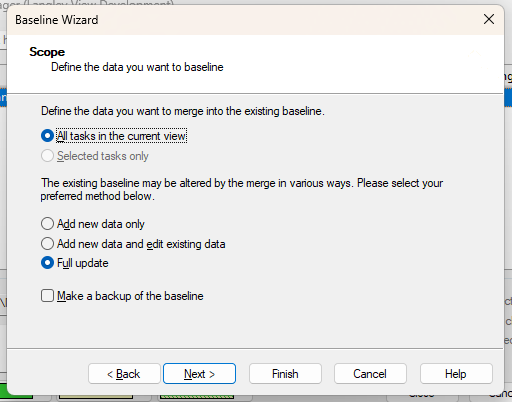
- You can use this screen to specify the data that you want to merge into the baseline and the way in which you want the baseline to be updated. In this instance, leave the fields as they are and click Next. The Summary screen of the Baseline Wizard appears, giving you a summary of the options you have selected.
- Click Finish to accept the options and merge the updates you have made to the live data into the baseline.
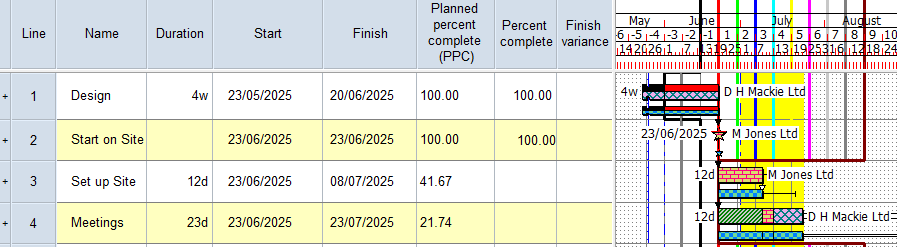
- Click Close to close the Baseline/What If Manager dialog. The baseline version of each task is now updated to match the tasks in the live data: the dates are now the same, as is the progress that has been reported.
Your project should now look something like this (note that the dates and durations of tasks, and the appearance of codes, annotations, resources
| Previous | Next |
| Reporting progress against tasks | Printing projects |