Creating a library of cost centres
Asta Powerproject deals with two kinds of costs:
- Costs that are assigned directly from a cost centre to a task, for example payment for a new office alarm system, rent for warehouse space which varies depending on the amount of time for which the warehouse is rented, or installation charges which vary depending on the number of units to be installed.
- Costs that result from assigning a resource to a task, for example the
Costs can represent either income to, or expenditure from a cost centre. Income could be a cash investment into a project or a receipt of payment for work done; expenditure could be payment for materials or salaries. Tasks can generate income or expenditure, or both.
You create the cost centres you want in Library Explorer.
Creating a cost centre library
To create a library of cost centres:
- In the Quick Access toolbar, click
 . A new tab opens, displaying Library Explorer.
 - In the left pane of Library Explorer, click the Cost Centre folder. As you based this project on the
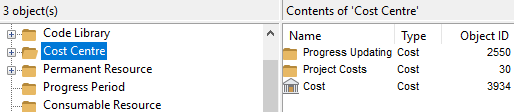
- Double-click the Project Costs folder in the right pane. A list of available cost centres appears:
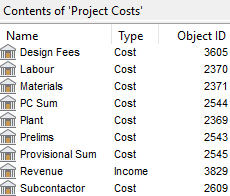
- Right-click a blank part of the right pane and select New Cost Centre from the menu that appears. A new cost centre appears in the right pane.
- Type "Bricklayer Costs" and press ENTER. A new cost centre entry appears beneath the cost centre you have just created.
- Type "Roofer Costs" and press ENTER.
- Click a blank part of the right pane.
Configuring cost centres
Asta Powerproject can calculate costs in the following ways:
- Fixed costs - these are for costs that you know will not change, regardless of the time taken or the amount of work undertaken.
- Time based - these are for costs that change depending on the duration of the cost bar. For example, if a five day task costs £1,000 per day and starts on day one, the total cost is £5,000. However, if the start of the task is delayed until day three, the cost may still be charged from day one (depending on the way in which the cost centre is set up), so the cost bar duration would be seven days, leading to a total cost of £7,000.
- Task work based - these are for costs that change depending on the amount of work in a task. For example, if a task consists of building three walls and each one costs £500 to write, the total cost is £1,500.
You can specify the way in which the start or end of a cost is linked to a task:
- Relative to task start - the start or finish date of the cost bar changes with the start date of the task.
- Fixed date - the start or finish date of the cost bar is set to a specific date, which does not change even if the task date changes.
- Relative to task finish - the start or finish date of the cost bar changes with the finish date of the task.
To configure the cost centres you have created:
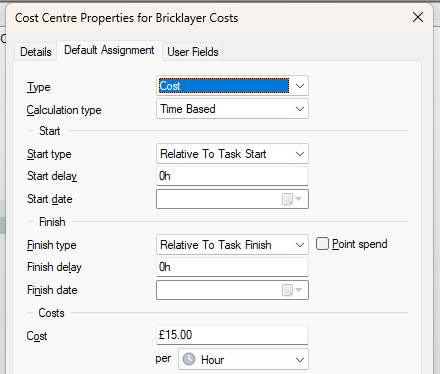
- Double-click the Bricklayer Costs cost centre. The Details tab of the Cost Centre Properties dialog appears.
- Click the Default Assignment tab.
- Select "Time Based" in the Calculation type field to indicate that the cost will be dependent on the duration of the tasks to which this cost centre is assigned.
- Enter "£15.00" in the Cost field to indicate that the Bricklayer costs will be £15 per hour:
- Click Close.
- Now configure the Roofer Costs cost centre by editing it and entering the following information into the Default Assignment tab of the Cost Centre Properties dialog:
- Calculation type - "Time Based".
- Cost - "£20".
- Close Library Explorer.
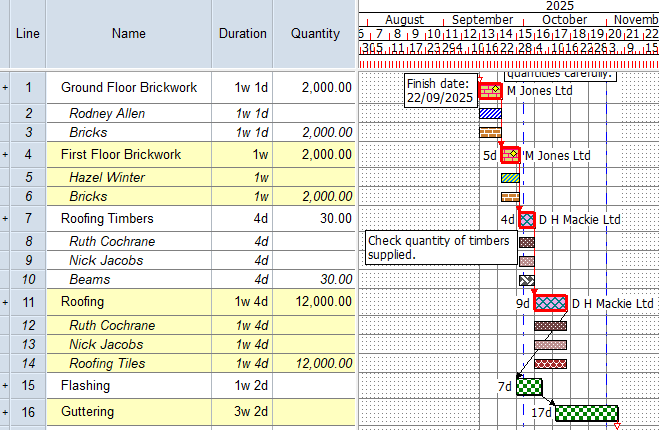
Your project should now look something like this (note that the dates and durations of tasks, and the appearance of codes, annotations and resources, may be different):
| Previous | Next |
| Viewing a histogram of resource allocations | Assigning direct costs to tasks |