Assigning direct costs to tasks
Direct costs are assigned directly from a cost centre to a task, without reference to a permanent or consumable resource. Here, you will assign costs to the tasks in the Super-Structure summary group:
First, you will ensure that cost allocations are visible in the bar chart:
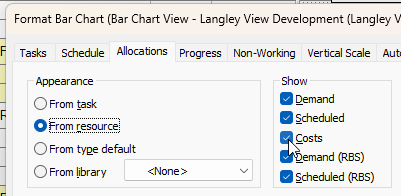
- Right-click a blank area of the bar chart and select Format Bar Chart from the menu that appears. The Format Bar Chart dialog appears.
- Click the Allocations tab.
- In the Show group, select the Costs check box:
- Click Close.
To assign direct costs to tasks in the Super-Structure summary group:
- Click the + symbol next to Cost Centres in the project view to view the cost centre
- Click the + symbol next to Project Costs in the project view to view the contents of this folder.
- Click and drag the Bricklayer Costs cost centre from the project view and drop it onto the Ground Floor Brickwork task. A Bricklayer Costs allocation bar appears underneath the Ground Floor Brickwork bar, with an allocation of the Bricklayer Costs cost centre that mirrors the task:

- Click and drag the Bricklayer Costs cost centre from the project view and drop it onto the First Floor Brickwork task.
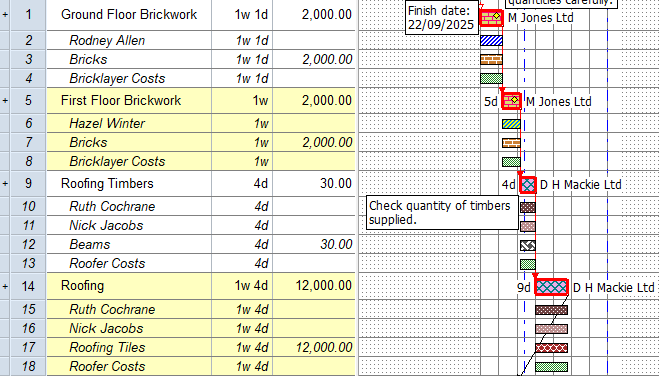
- Click and drag the Roofer Costs cost centre from the project view and drop it onto the Roofing Timbers and Roofing tasks. The first four tasks in the Super-Structure summary group should now each have a cost allocation:
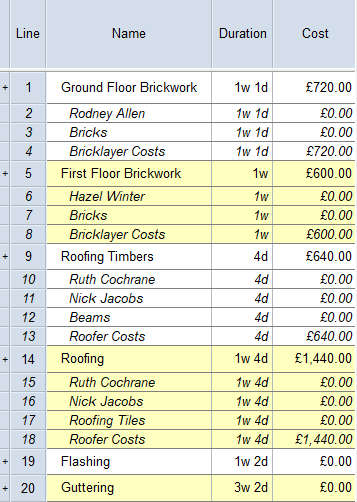
- To view the cost of each allocation in the spreadsheet, right-click the heading of the Quantity column and click Field - Cost or Income- Cost from the menu that appears. The Quantity column is replaced by a Cost column, which shows the direct cost of each task:
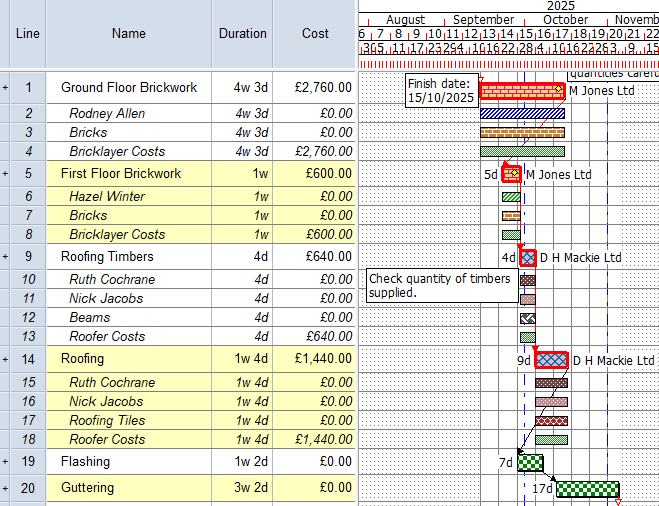
- The cost of each task is time-based. This means that if the duration of a task changes, the cost of the task will be updated accordingly. To see this in action, click and drag the right-hand edge of the Ground Floor Brickwork task to the right to increase the duration of the task. Note that the cost of the task is updated automatically to match the changed duration when you release the mouse button:

Your project should now look something like this (note that the dates and durations of tasks, and the appearance of codes, annotations, resources and cost centres, may be different):
| Previous | Next |
| Creating a library of cost centres |