Assigning a work pattern to a calendar
You can assign more than one work pattern to a calendar. For example, a large outdoor engineering project may require one work pattern for the winter months when poor daylight and bad weather may lead to shorter working days, and another work pattern for the summer months when longer days and good weather mean that working days can be longer.
If a calendar has more than one work pattern assigned to it, you must specify a dominant work pattern for the calendar. Asta Powerproject uses the dominant work pattern to convert durations from one time unit to another. The dominant work pattern should therefore be the one that best describes the calendar's working time units. If a calendar has a single work pattern, that is always the dominant work pattern.
You can choose a work pattern when creating a calendar using the Calendar Wizard. To assign a work pattern without using the wizard:
- Display the Calendar Properties dialog for the calendar you want to edit.
- The Work Pattern Assignments tab may not currently be displayed on the Calendar Properties dialog. If it is not currently visible, click More >> to display it.
- Click the Work Pattern Assignments tab. This tab contains a grid listing all the work patterns assigned to the selected calendar.
- To make a new work pattern assignment, click Add, or click the first blank line in the list of work patterns. To change an existing work pattern assignment, click its name in the list. Select the work pattern you want from the drop-down list that becomes enabled. To remove a work pattern assignment, select it then click Remove or press DEL.
- In the Offset field, specify the shift with which you want the work pattern to start.
- Specify the day on which you want the first shift to fall by entering a date in the Alignment Date field. For example, if the first shift should start on a Monday, select any date that is a Monday; if it should start on a Wednesday, select any date that is a Wednesday.
- Specify the dates on which the work pattern should begin and end in the Start Date and Finish Date fields. For example, you could specify that the work pattern only applies to the summer months. The alignment date does not have to be the same as the start date. For example, if the alignment date is a Sunday, setting the initial shift to a Sunday, but the start date is a Wednesday, the work pattern will begin with the Wednesday shift. If you assign more than one work pattern to a calendar, the start and finish dates of the work patterns cannot overlap.
- Close the Calendar Properties dialog when you have finished assigning work patterns.
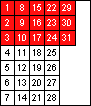
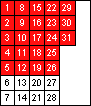
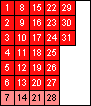
You can view the work patterns assigned to a calendar by displaying the Calendar tab of the Calendar Properties dialog. The examples below show three different work patterns as they would appear on the tab:
|
|
|
|
|
3 day work pattern |
5 day work pattern |
6.5 day work pattern |
There are several other ways of assigning work patterns to calendars. When you use any of the following techniques, the work pattern takes its default alignment date and initial shift as specified on the Work Pattern Properties dialog:
- Select date(s) on the Calendar tab of the Calendar Properties dialog, then drag the work pattern from Library Explorer and drop it on the selected dates.
- Select date(s) on the Calendar tab of the Calendar Properties dialog, then right-click and choose Assign work pattern.