Working with buffer tasks
Buffer tasks, also known as 'contingency tasks', can be used within projects to protect important dates and reduce excess float. Buffer tasks, which do not have float, instead shrink or expand in size as required without moving beyond their finish date, or the start date of successor tasks. There are two types of buffer task: project buffer tasks, which protect a finish date that you specify, and feeder buffer tasks, which protect the start date of successor tasks. Project buffer tasks differ from feeder buffer tasks in that they have no outgoing links or tasks to the right on the same bar, and they have a deadline flag applied to them when you create them: if a buffer task has an outgoing link or a task to the right on the same bar, it is a feeder buffer task. Buffer tasks will only move beyond their finish date, or delay the start of successor tasks, once they are completely consumed, at which point they are turned automatically into finish milestones.
The following simple examples illustrate the use of project buffer tasks and feeder buffer tasks.
 Project buffer task example
In the illustration below, task H is a project buffer task - it has no outgoing links, and no tasks to the right of it on the same bar. It is protecting the date represented by the finish of the buffer task, shown by the deadline constraint flag.
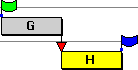
If task G can finish in less time than originally planned, the tasks would look as follows after a reschedule:
|
|
As the duration of task G has decreased, the duration of buffer task H has increased to protect the finish date. In reality, this would be undesirable, but close monitoring of buffer consumption would show that this has occurred, so corrective action, such as shrinking the buffer task, could be taken. |
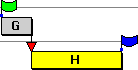
If task G takes longer than originally planned, the tasks would look as follows after a reschedule:
|
|
As the duration of task G has increased, the duration of buffer task H has decreased to protect the finish date. |
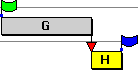
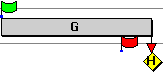
If task G is delayed and/or takes longer such that it finishes later than the finish date of the buffer task, the tasks would look as follows after a reschedule:
|
|
Buffer task H has shrunk to a finish milestone and has moved forward past the buffer task finish date. Again, close monitoring of buffer consumption would flag this as a problem. |
 Feeder buffer task example
In the illustration below, task B is a feeder buffer task, designed to protect the start date of task C. Note that there is a link from another task into the start of task C:
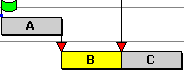
If task A can finish in less time than originally planned, the tasks would look as follows after a reschedule:
|
|
As the duration of task A has decreased, the duration of buffer task B has increased. |
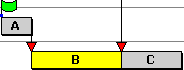
If task A takes longer than originally planned, the tasks would look as follows after a reschedule:
|
|
As the duration of task A has increased, the duration of buffer task B has decreased from its start date to protect the start date of task C. |
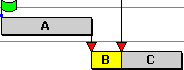
If task A is delayed and/or takes longer such that it finishes later than the finish date of the buffer task, the tasks would look as follows after a reschedule:
|
|
Buffer task B has shrunk to a finish milestone and has moved forward past the buffer task finish date. As the buffer task has been completely consumed, task C has had to be moved. Close monitoring of buffer consumption would flag this as a problem. |
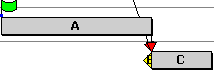
Using a buffer task to manage a project's terminal float
If you are working with an NEC-compliant project, you must show a project's terminal float. 'Terminal float' refers to the total float available for a project, which is the amount of time that the project can slip without affecting the planned completion date. You can use a buffer task to do this, by inserting a buffer task at the end of a schedule to manage this terminal float. The buffer task absorbs delays and protects the completion date. By managing buffer task effectively, you can ensure that the project stays on track and meets its deadlines.
In the following illustration, a 'Terminal Float' buffer task has been inserted between the 'Actual Completion Date' and 'Planned Completion Date' milestones, with the finish date of the buffer task matching the planned completion date. At present, the buffer task shows a terminal float amount of 4w:
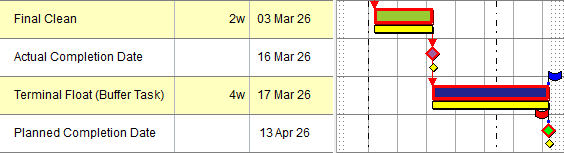
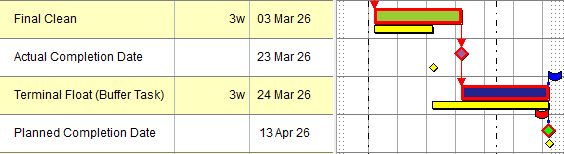
This buffer task shows the difference between the project's planned completion date and its actual completion date. As the project progresses, the buffer task will grow or shrink, depending on whether tasks in the project are completed earlier or later than scheduled. This is illustrated below, where the duration of the 'Final Clean' task has grown from 2w to 3w; the 'Terminal Float' buffer task has shrunk by a week as a result, reducing the project's terminal float from 4w to 3w:
More illustrations showing how you can use buffer tasks within your projects
Notes on buffer tasks
- As project buffer tasks protect the finish date that is specified by the deadline flag that is applied to them, a project buffer task will still extend out to its deadline even if this extends beyond the project finish date (ie beyond the finish date of the last substantive task in a project).
- You can allocate resources to buffer tasks, but the resources must be non-modelled. If you define a task that has modelled resources allocated to it as a buffer task, the resource allocations are automatically changed to non-modelled.
- You can progress buffer tasks in the same way as other tasks.
- You can link buffer tasks to predecessor and successor tasks in the same way as other tasks, except that you cannot create links that finish at the finish of buffer tasks.
- Buffer tasks never have float. Because of this, they are usually displayed as critical following a reschedule. You can choose to display feeder buffer tasks as non-critical, by selecting the Buffer tasks - Show as non-critical check box on the Schedule tab of the Format Bar Chart dialog.
- Buffer tasks are never moved during resource levelling.
- Buffer tasks with resource allocations for which 'allocation' is the calculated parameter can shrink to a minimum duration of 1 second; buffer tasks with other resource allocations, or with no resource allocations, can shrink to become milestones.
- When you define a task as a buffer task, its duration at that point is stored in the Original buffer task duration field.
Monitoring the consumption of buffer tasks
You can use the Buffer consumption field to monitor the way in which the durations of buffer tasks change during reschedules.
A simple way of monitoring the consumption of buffer tasks is to display the Buffer consumption field in the spreadsheet and sort on it. You will probably want to keep a check on buffers that are reaching undesirable levels - for example, those that are nearly completely consumed, placing the finish date or the start date of successor task in danger, and those that are increasing, potentially lengthening the project duration.
You can specify the way in which the Buffer consumption field is displayed, using the Buffer consumption field on the Table Definition Properties dialog. Select:
- Buffer consumption factor to display the percentage of the duration of a buffer task that has been consumed; a negative value indicates that a buffer has increased in duration.
- Buffer remaining factor to display the percentage of the duration of a buffer task that has not been consumed; a value greater than 100 indicates that a buffer has increased in duration.
- Buffer incursion to display the actual duration of a buffer task that has been consumed; a negative value indicates that a buffer has increased in duration.
- Buffer usage to display the actual amount by which the duration of a buffer task has increased; a negative value indicates that a buffer has been partially-consumed.
The following table illustrates the way in which each setting affects the way in which the buffer consumption is displayed:
| Original buffer task duration | Current buffer task duration | Buffer consumption factor | Buffer remaining factor | Buffer incursion | Buffer usage |
|---|---|---|---|---|---|
| 10 | 20 | -100 | 200 | -10 | 10 |
| 10 | 15 | -50 | 150 | -5 | 5 |
| 10 | 10 | 0 | 100 | 0 | 0 |
| 10 | 5 | 50 | 50 | 5 | -5 |
| 10 | 0 | 100 | 0 | 10 | -10 |
Filtering for buffer tasks
You can use the Constraints and buffers page of the Filter Wizard to filter for project and feeder buffer tasks.