Grouping related tasks using hammocks
You can use hammocks to show an overview of tasks that are related to each other but that may be located in different parts of a project - in different charts or summary groups, for example. Here, you will create a hammock to group together two tasks that require groundworks to be carried out:
- On the bar below the Finish on Site bar, create a task called "Groundworks Tasks".
- Right-click the task and select Make Into - Hammock from the menu that appears. The hammock task appears as illustrated below:

- Double-click the Sub-Structure summary task in the bar chart to expand it.
- Right-click the Dig Footings task and select Add to Hammock from the menu that appears. The Select Hammock dialog appears:
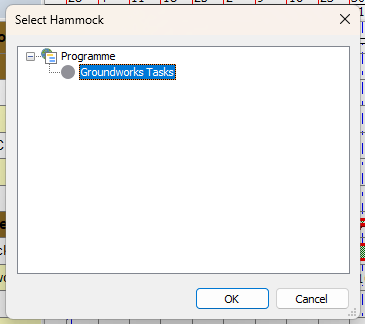
- There is only one hammock in the project at the moment. Click Groundworks Tasks in the dialog and click OK. A copy of the Dig Footings task is added to the hammock:

- Click the Landscaping chart in the project view. The view is updated to display only the contents of the Landscaping chart.
- Repeat steps 4 and 5 to add the Prepare Ground task to the Groundworks Tasks hammock.
- Click the Programme chart in the project view. The hammock now contains copies of both tasks:

The tasks that you add to a hammock are not moved to the hammock; the hammock contains copies of the tasks and the originals are still located in the same place as they were before you added them to the hammock. - You can contract and expand hammocks in the same way you can contract and expand summary tasks. Try this now: double-click the hammock in the bar chart to contract it and hide the tasks it contains, then double-click it again to expand it.
Note that the hammock you created is displayed as part of the project hierarchy in the project view: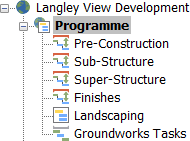
- Click the Groundworks Tasks hammock in the project view. The view is updated to display only the contents of the hammock:

This can be useful if you want to view the contents of a hammock apart from the rest of a project, or print the contents of a hammock.
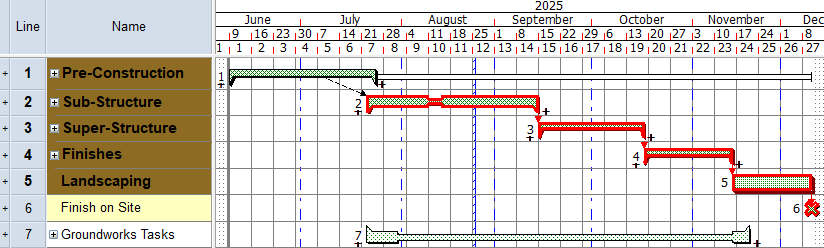
Before you continue, click the Programme chart in the project view, double-click any expanded summary tasks in the bar chart to contract them and double-click the hammock to contract it.
Your project should now look something like this (note that the dates and durations of tasks may be different):
| Previous | Next |
| Linking tasks in different charts and summary groups | Using task pools as templates for networks of tasks |