Introduction to the Backstage view
While the Ribbon contains the commands that you use while working within a project, the Backstage view contains the commands that you use to do things to a project. For example, it contains the commands that you use to open, save and print a project, and the commands that you use to define users' passwords that enable them to access a project.
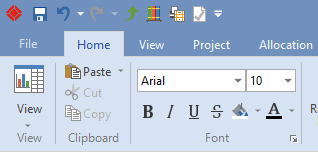
To access the Backstage view, open a project and click the File tab:
The Backstage view appears:
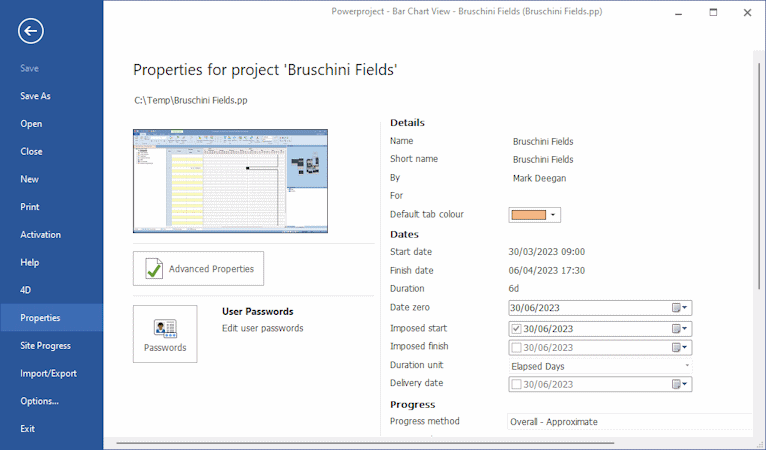
Backstage view commands
| Command | Use this command to |
|---|---|
| Save | Save the active project. |
| Save As |
Save the active project with a different file name, to a different location,
|
| Open |
Open a project
|
| Close | Close the active project. |
| Delete |
Delete an Asta Enterprise project - either the project that is currently open, or a different project - from an Enterprise server.
This command is available only in Asta Enterprise. |
| New |
Create a new project.
|
|
Preview and print the current view of the active project.
|
|
| Activation |
View the activation status of
This tab is not available in Asta Powerproject SaaS.
|
| Help |
Access Help on using
You cannot make your own documentation available in Asta Powerproject SaaS.
|
| 4D |
Associate 3D models with Asta Powerproject projects.
This tab is available only if you use Asta Powerproject 4D.
Refer to the Asta Powerproject 4D Help for more information. |
| Properties |
|
| Site Progress |
Asta Siteprogress Mobile is a downloadable app which enables mobile users to record the progress of tasks and repetitive events from a remote location against their work as scheduled in an Asta Powerproject project. As well as recording detailed information about tasks and completing ticksheets to record progress, mobile users can record field evidence relating to tasks to prove that they have been carried out. Click this link to display the Asta Siteprogress Mobile Configuration Help.
Asta Siteprogress Mobile administrators use this tab to configure Asta Siteprogress Mobile and to import and export Asta Siteprogress Mobile data. Contact Elecosoft for more information on Asta Siteprogress Mobile if you do not currently use it. |
| Import/Export | Import projects that have been saved in alternative file formats, and export projects in alternative file formats so that they can be opened in other project management software applications. |
| Options | Configure |
| Exit | Close |
Once you have checked out an Asta Vision programme or started a collaboration session and opened it in Asta Powerproject, the following additional commands appear in a Vision group on the Home tab of the Ribbon:
| Command | Use this command to |
|---|---|
| Check-In |
Check in the active programme to Asta Vision, uploading any changes that you have made to the programme and changing its status to Checked In.
If you have started a collaboration session on a programme, or if you have checked out a programme to an Asta Enterprise server, anyone who has worked on the programme can check it back into Asta Vision, provided their access rights in Asta Vision allow them to do this. When such a programme is checked in, both your changes and the changes made by all other users are checked in. You can only check in a programme that is in a collaboration session, or that has been checked out to an Asta Enterprise server, if no other users are currently using it. |
| Cancel Check-Out |
Cancel the checking out of the active programme from Asta Vision. Cancelling a programme check out changes the status of the checked out programme to Checked In and makes it available for editing to other users.
If you have started a collaboration session on a programme, cancelling the check-out cancels the collaboration session. |
| Submit |
Check in and submit the active programme to Asta Vision, uploading any changes that you have made to the programme and changing its status to Submitted.
If you have started a collaboration session on a programme, or if you have checked out a programme to an Asta Enterprise server, anyone who has worked on the programme can submit it, provided their access rights in Asta Vision allow them to do this. When such a programme is submitted, both your changes and the changes made by other users are submitted. You can only submit a programme that is in a collaboration session, or that has been checked out to an Asta Enterprise server, if no other users are currently using it. |
| Add Comment | Record a comment against the active programme and - if Asta Vision has been configured to allow this - attach files to the comment. |
| Programme Actions | Perform any available actions that correspond to workflow rules. The actions available depend on your Asta Vision workflow. |
| Open in Vision | Open the active programme's project in Asta Vision. You may want to do this to view details of the project, its history and its revisions. |
Many of these commands are also available by right-clicking an Asta Vision programme on the Open tab of the Backstage view.
Making your own documentation available in Asta Powerproject