Using links to maintain offsets between tasks
Normally, if you link tasks, rescheduling the project will rearrange the tasks so that the gaps between them are as prescribed by the logic of the links - and by any other constraints. This is illustrated below:
|
|
|
|
Linked tasks, prior to reschedule |
Linked tasks, post-reschedule |
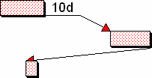
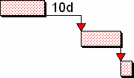
If you were to then move one or more of the tasks above manually to change the gap between them, rescheduling the project subsequently would normally rearrange the tasks again to reimpose the link logic, removing the offsets that you created by moving the tasks manually:
|
|
|
|
The middle task moved manually |
Post-reschedule, link logic is reimposed |
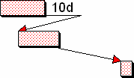
In some circumstances, you may want to ensure that the offsets between tasks that are created when you move the tasks are maintained, and that they are not overridden when a project is rescheduled. This may be useful in a number of circumstances, for example where you have a bar that contains overlapping tasks. Tasks on such bars are not constrained by any implicit links to predecessor tasks on the same bar as they would be on a standard bar on which task overlaps are not allowed. Once you have drawn a series of overlapping tasks, you can maintain the offsets between them and prevent the tasks from being moved when the project is rescheduled using a special kind of link.
To specify that the offsets between two or more tasks should be maintained:
- Select the tasks between which you want to maintain offsets, for example by holding down CTRL and clicking the tasks.
- Right-click one of the selected tasks, then select Linking - Maintain Task Offsets from the menu that appears.
If links already exist between the selected tasks, the links are configured so that the lead/lag of the links reflects the current offsets between the tasks and so that the task offsets are maintained; if the tasks are not currently linked, new links with lead/lag corresponding to the offsets are drawn between them automatically. Both situations are illustrated below:
|
|
|
|
Prior to offsets being maintained |
Post-maintain task offsets |
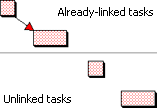
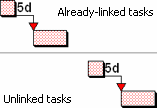
At first sight, these links do not look any different to normal links. The difference becomes apparent when you view the properties of the links on the Details tab of the Link Properties dialog. Normal links display 'Never' in the Maintain task offsets field; links that maintain offsets between tasks display either 'Working' or 'Elapsed'. Editing this field for existing links and changing it from 'Never' to either 'Working' or 'Elapsed' is another way of maintaining the offsets between two tasks that are already linked. Select 'Working' if you want the offset to be calculated according to the task calendar, or 'Elapsed' if you want it to be calculated in elapsed time.
Once you have configured tasks so that the offsets between them are maintained, you can move the tasks manually to increase or decrease the offsets between them without these changed offsets being overridden when the project is rescheduled: if you drag a predecessor task so that the offset between it and its successor task is twice what it was, this new offset is unchanged when you next reschedule.
 Notes on maintaining offsets between tasks
- When you edit the properties of a link so that task offsets are maintained according to working time, the calendar of the predecessor task is used to calculate the lead/lag that should be applied to the link unless the link has end lead/lag and no start lead/lag, in which case the calendar of the successor task is used.
- If you select more than two tasks that are currently unlinked, right-click one of them and select Linking - Maintain Task Offsets, the tasks are linked in chart order - and in task natural order, if the tasks are located on the same bar.
- If you configure a link to maintain task offsets, it does not make much sense to edit the link's lead/lag subsequently, as if the task is then moved, your edit to the lead/lag will be replaced by the lead/lag that is recalculated automatically by the moving of the task.