Setting non-working time display options
You use the Non-Working tab of the Format Bar Chart dialog to specify the way in which you want non-working time to appear in the bar chart.
Calendars have working time, in which work can be carried out (such as the normal working week and overtime periods) and non-working time, in which work cannot be carried out (such as weekends and holidays). You can choose to display the working and non-working periods of a calendar in the bar chart; this helps you to see exactly when work can take place.
The calendar assigned to a task or resource is displayed on the bar, behind the task or allocation. If you have assigned a number of different calendars to tasks and resources, there may be a variety of working and non-working periods displayed.
In the Draw non-working shading group, select the On chart check box to display all non-working periods on the bar chart. When this option is selected, you can turn individual working and non-working categories off by clearing their check box in the Categories list. For example, you might want to display weekends but not holidays so you would clear the check box for the Holiday category.
 Examples of non-working time display options
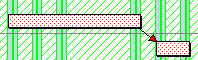
In the illustration below, non-working time is shown on the bar chart. It shows non-working time from the end of each working day until the start of the following working day. Note that a lunch break is also shown for each day:
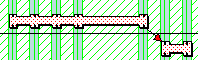
In the illustration below, non-working time is shown on the bar chart and non-working display is shown on tasks. Note that the tasks are 'pinched in' during non-working time:
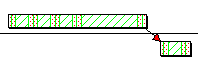
You can also choose to display non-working time on tasks or allocations but not on the bar chart, either by 'pinching in' the tasks, or by shading them, as in this example:
When non-working shading is displayed on the bar chart and on tasks or allocations, you can select the Remove outline check box to remove the outline of tasks and allocation bars during non-working time.
You can choose to fold away working or non-working time, hiding it from view. For example, you could fold away non-working time so that only working time is shown in the bar chart. When non-working time is displayed but folded away, it is visible as coloured hairlines down the bar chart.
The working and non-working time displayed for summary tasks
You can choose whether to display non-working time on subheading bars (bars that have a name but no tasks). If you choose to display non-working time on subheading bars, you can select the calendar whose non-working time you want to display.
You can turn the display of non-working time on and off instantly using a display switch.
Folding working and non-working periods
Shading the bar chart between two dates
Turning elements of the display on and off
Specifying how to display expanded tasks, summary tasks and hammocks