Printing tiled or paginated output
Your printing output can be tiled or paginated:
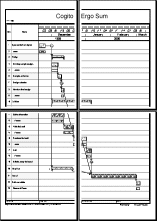
- When the output is tiled, the border is drawn around the whole output, which is printed continuously across the appropriate number of pages, and you will need to fit the pages together to read across and down the full length of the output. With the tiled style, features such as the date zone and bar numbers column are not reprinted on every page, so to interpret a page you may need to cross-reference other pages in the output.
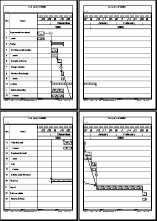
- When the output is paginated,
|
|
|
|
Tiled output - the border surrounds all four pages |
Paginated output - the border is printed around each page individually |
You can specify whether to print using tiled or paginated style using the Scaling tab of the Print dialog, or using the Print Preview toolbar.
To print using tiled style, select the Fit border around output radio button on the Scaling tab of the Print dialog, or click  on the Print Preview toolbar.
To print using paginated style, select the One border per page radio button on the Scaling tab of the Print dialog, or click  on the Print Preview toolbar.
If you are printing a calendar view, your output is always printed using paginated style, ie one border per page.
Specifying horizontal and vertical pagination options
Incorporating page breaks in your printouts