Editing bars and tasks using the properties view
You can use the
properties view to view and edit the properties of the selected task and bar, and to view properties of the selected task's allocations and links. The properties view appears in the lower portion of the
The properties view may or may not display a number of tabs that display advanced information. If these tabs are not currently displayed, you can click >> to display them. If they are currently displayed, you can click << to hide them from view.
Opening and closing the properties view
You can toggle the properties view on and off by clicking  on the status bar. You can also turn the properties view off by clicking the
  button in the properties view title bar.
Minimising the properties view
As an alternative to closing the properties view completely, you can minimise it. Minimising the properties view enables you to move it out of the way so that it does not obscure the bar chart, then redisplay it instantly whenever you want to view the properties of an item.
To minimise the properties view, click the  button in the properties view title bar. The properties view is reduced to a thin tabbed bar at the bottom of the screen:
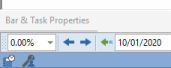
To redisplay the properties view, move the mouse pointer over the tab that represents the properties view at the bottom of the screen. The properties view reappears, until you move the mouse pointer away from it, at which point it is minimised again.
To reopen the properties view fully once it has been minimised, stopping it from minimising itself automatically, click the  button in the properties view title bar.
Resizing the properties view
You can resize the properties view by clicking and dragging the horizontal divider that separates it from the rest of the screen:
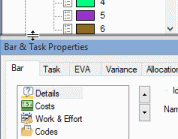
Drag the line upwards to increase the size of the properties view, or downwards to decrease its size.